Site Settings: Every Tab Explained
A tour of the seven Site Settings tabs: what each controls, what Offerings and Competitors quietly change, and where the deeper pages live.
Updated Sep 9, 2026 · 11 min read
Most people open Site Settings once, fix the site name, and never come back.
Which is a shame, because two of the seven tabs quietly decide what your articles are about, and one of them is the single biggest quality lever in the product. This page walks all seven, says what each one actually controls, and points at the deep page where one exists.
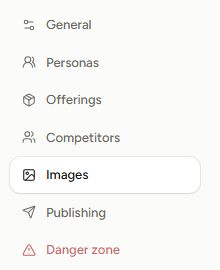
You will find them down the left side of Settings, one site at a time.
What each tab is for
- General - the site's identity: name, writing language, target market, AI model, and four automation switches.
- Personas - up to four writers with their own voices, and who covers which pillar.
- Offerings - what you sell, your partner links, your store catalogue, and the list of pages articles are allowed to link to.
- Competitors - who you are up against, feeding research and keyword sourcing.
- Images - visual style, how many images per article, and inline data visuals.
- Publishing - the two toggles that change what lands on your live site.
- Danger zone - deleting the site, with a name-typing confirmation.
Every tab is deep-linkable. Bookmark ?tab=offerings if you live there.
General: identity and four switches
Site Name is the only required field. Below it sit Language (what the articles are written in) and Target Market (where your readers search from).
Those two are not the same setting, and people mix them up constantly. Market drives keyword research, search volumes, and rank tracking; language drives the prose. A German-language blog targeting Switzerland is a perfectly normal combination.
Changing the market re-bases your data. Volumes and difficulty scores are pulled per market, so switching after your authority map is built means the numbers you already looked at came from a different country. See Multi-Language Support for how the pair works together.
AI Model appears only if your plan offers more than one. Then come four controls in a two-by-two grid:
- Auto-Write - skips the outline review step and goes straight from outline to draft. Off means every article pauses for your approval.
- Style Pass - the editing pass that breaks up paragraph rhythm after the draft is written. On by default, every plan.
- Auto-Publish - pushes finished articles to your connected CMS without you clicking anything.
- Retrolink Scan Frequency - how often older articles get rescanned for new internal linking opportunities. Defaults to weekly.
General is the one tab with a Save Changes button. The other tabs save as you go.
Personas: give the site more than one writer
Each site can carry up to four writers, each with a name, an avatar, and its own voice. Assign a persona to a pillar and it owns everything in that pillar; everything unowned gets handed out by weight.
It is the highest-leverage tab here, and it has its own page.
Brand Voice: tone, custom voices, and personas→Offerings: the tab everyone skips
The card is titled Your Website, and it holds exactly one product or service per site. That limit is deliberate: one site should represent one business, and the whole research pipeline reads offerings[0].
The fields are all questions, on purpose:
- Name - required, and the only one that is.
- Website URL - your root domain. Used for analytics and linking.
- What does it do? - the plain-language function.
- Who is it for? - the audience, in their own words if possible.
- Key features - one per line.
- What makes you different? - the differentiator, not the tagline.
- Pricing - optional, and more useful than it looks.
If typing all that sounds tedious, put your URL in and press Auto-fill from URL. It scrapes your homepage plus the usual suspects (/pricing, /about, /features) and fills the fields in for you to edit. You get ten of those an hour.
What offerings actually change
More than most people expect. Offerings are read at four separate points in the pipeline:
- Keyword seeds - your description and product name become the starting material for research, so the seeds describe your business rather than your industry in general.
- A knowledge-depth gate - the system counts how much you filled in. A meaningful What does it do?, three or more features, a real differentiator, a described audience: two of those four signals and your site is treated as having enough context for commercial keywords. Below that, research stays on informational topics only.
- Relevance scoring - every candidate keyword gets a business-relevance score from one to five against your offering, and anything under three is dropped. This is what stops a solar blog filling up with generic energy news.
- Product-aware writing - on comparison and commercial articles, the full offering block goes into the outline and the writing prompt, so the article knows what you sell while it argues.
There is also a hard gate: an authority map will not build at all if the site has zero offerings. That failure is intentional. A map built with no idea what you sell is a map of your industry, not your business.
Being honest about one gap: offerings do not reach the main internal-link pass, which sees only your published articles and your imported pages. Product URLs get linked in one narrow place, the comparison tables, where product names in table cells are matched and wrapped. If you want your product page linked from body prose, add it under Your Pages below, star it as a money page, or add it as a product-type Partner link so Retrolink can place it.
Your Pages: the link target list
Lower down the same tab sits Your Pages, which is where internal linking actually gets its targets. Two modes: Sitemap URL for a real sitemap.xml, or Crawl Homepage if you do not have one. Press Import and the list fills in, capped at 500 pages.
The writing pipeline uses up to 30 of those pages per article, alongside up to 20 of your published RankSpiral articles.
Partner links: the money link library
The Partner links card holds up to 20 curated links, each with a label, a URL, a type toggle (affiliate or product), and a one-line What it is description. Both the writer and Retrolink use them as money-link targets; affiliate links go out with rel="sponsored" automatically, your own product links do not.
The description is the targeting context, and for anything that is not a household-name brand it is effectively required. One extra trick lives here: if an affiliate link carries a perk, say so in the description (readers get 15% off) and the writer may fold it into the anchor wording. The card warns you about the catch, and it is worth repeating: nobody knows when an offer expires except you, so remove the perk from the description the day it ends.
Each link can be flipped between Active and Paused, which is gentler than deleting when a partnership goes quiet for a season.
Store products: your catalogue, synced or imported
Below Partner links sits Store products: the catalogue articles are allowed to link. It fills from two sources that can coexist, the Shopify sync and a CSV import, and every product carries an Included / Excluded toggle. Excluded products never appear in keyword research, the authority map, or article links.
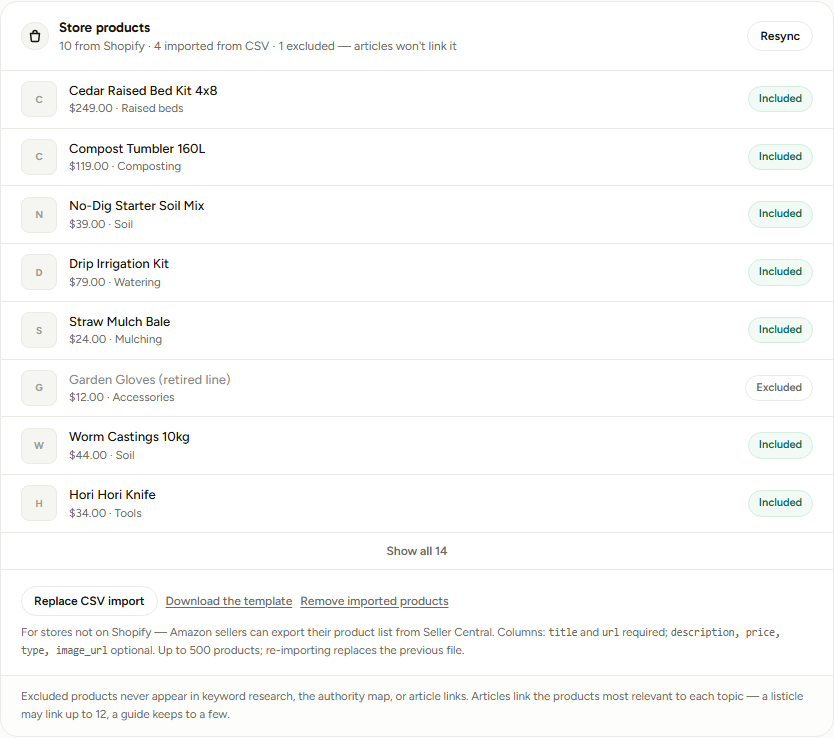
Not on Shopify? The CSV path is for you, and it is deliberately friendly to the files stores already have: Import products from CSV accepts up to 500 products in one file, and the header names Shopify, WooCommerce, and Amazon Seller Central exports use are recognised as-is. Only title and url are required. Imported products behave exactly like synced ones: articles link them, you can exclude them one by one, and a re-import that drops a product feeds the broken-money-link detection on the Links page.
Competitors: sharper research, honestly graded
Optional, capped at ten, two fields each (Competitor name and a URL). Rows save when you click away from them.
Competitors do two jobs. They go into the research prompt for commercial articles, where the model is told to look up their current features and pricing, which is what gives comparison pieces something real to compare. And their ranking keywords get pulled in as candidate keywords for your own map.
That second job is where it gets interesting.
The relevance gate, and why a competitor gets ignored
Before a competitor's keywords are allowed anywhere near your research, a sample of them is scored against your business. What happens next depends on the share that comes back relevant:
| Relevant share | Verdict | What enters research |
|---|---|---|
| 35% or more | Healthy | The full keyword pull |
| 15% to 35% | Partial | Only the keywords that scored relevant |
| Under 15% | Excluded | Nothing |
Verdicts are cached for 30 days and shown inline under the offending row. An excluded competitor tells you plainly that its search footprint does not match your business and suggests replacing it. A partial one tells you research is using only the matching share.
This exists because of a real incident. Someone added a giant, loosely related site as a competitor, and its keywords swamped the map with topics the business had no business writing about. Now they get graded first.
You may also see suggestions under Found in your target search results, each with the share of your SERPs it appeared in. Those come from the authority map build, not from a guess. Press Add to adopt one.
Images and Publishing
Both have their own pages, because both are deeper than a tab tour can carry.
Images holds five style presets, a custom prompt, the reference-image upload that extracts a style for you, images per article, the inline data visuals beta, and Your images: up to five real screenshots or photos you upload once and insert into any article from the editor.
Images: styles, reference uploads, and inline visuals→Publishing holds two toggles that change what lands on your live site: the post-publish sitemap ping, and FAQ schema injection.
Sitemap ping and FAQ schema→Danger zone
One button, Delete Site, which asks you to type the site's exact name before Confirm Delete unlocks. Everything for that site goes: articles, keywords, the authority map, rank history.
Your article allowance does not come back. Article quota is a ledger that survives deletion, so deleting a site never refunds the articles it generated.
Getting the most out of these tabs
Fill in Offerings before you build the map, not after. Keyword relevance is scored against whatever was in that tab at build time. Building first and describing your business second means re-running the build to get the benefit.
Write the differentiator like you are losing a deal. "Unlike the big platforms, we do not charge per seat" is usable; "best-in-class solution" is not. The differentiator field is read on every commercial article, and vague input produces vague comparisons.
Import your pages even if you have almost none. Five real URLs beat zero, because zero means the link pass has nothing but your own RankSpiral articles to point at, and a new site has none of those either.
Add competitors you actually lose to, not the biggest names in the category. A category giant will almost certainly come back excluded, having contributed nothing except a wasted slot. Three sharp competitors outperform ten famous ones.
Turn Auto-Write off for your first five articles. Reading the outline before it becomes 3,000 words is the cheapest quality control there is, and once you trust the outlines you can flip it on and never look again.
If something is not behaving
- Changes to General did not stick. That tab needs Save Changes. The other tabs save on their own, which is exactly why the General one catches people.
- A competitor is added but nothing changed. Look for a coloured line under the row. Excluded means its keywords were dropped on purpose.
- The map build refuses to start. Check Offerings. Zero offerings is a hard stop, by design.
- Articles are not linking to your product page. Expected today. Add the page under Your Pages and it becomes a legal link target.
- The Custom image style is locked. Custom styles and personas both ride on the same plan gate. See Plans and Pricing.
Seven tabs, maybe twenty minutes of honest input, and every article you generate from then on knows who you are.
That is a better trade than it sounds.
Was this page useful?
Tell us what was missing and we'll fix the page.