Link Click Tracking
Measure which links readers click in your articles: money pages, partner links, internal links. One script tag, no cookies, no personal data.
Updated Aug 26, 2026 · 9 min read
Search Console tells you who arrived. It says nothing about what readers did next... which is unfortunate, because "did anyone click through to the pricing page" is the entire reason most of these articles exist.
Link tracking closes that gap with one script tag. This page covers what it measures, how to install it, how to read the Links tab, and how to run it cleanly when several projects share one domain.
What it measures, and what it refuses to collect
Once the snippet is on your site, RankSpiral counts clicks on the links it already knows about:
- Money - clicks to the money pages you starred in Settings → Offerings. Pricing, signup, checkout.
- Affiliate and Product - clicks on the partner links you added in the same place.
- Internal - article-to-article clicks within your own domain.
It also records a plain pageview whenever a page loads. That pageview is the heartbeat: it is how the Links tab knows the tracker is alive even on days when nobody clicks anything, and it is the denominator behind the CTR column.
Now the part most analytics tools bury in a subprocessor list. The beacon carries exactly three things: your project token, the clicked link, and the page path it was clicked on. No cookies, no stored IP addresses, no user agents, nothing about the person.
Your visitors' click strings are never stored either. The server matches each clicked link against your own link inventory and stores its canonical copy of the URL. A link it does not recognize, say a citation to some external study, is dropped on arrival and never written anywhere. The result is a click count, not a behavior profile.
Install the snippet
Open Analytics → Links. Until the first event arrives, the tab wears a small setup badge and shows this screen instead of charts:
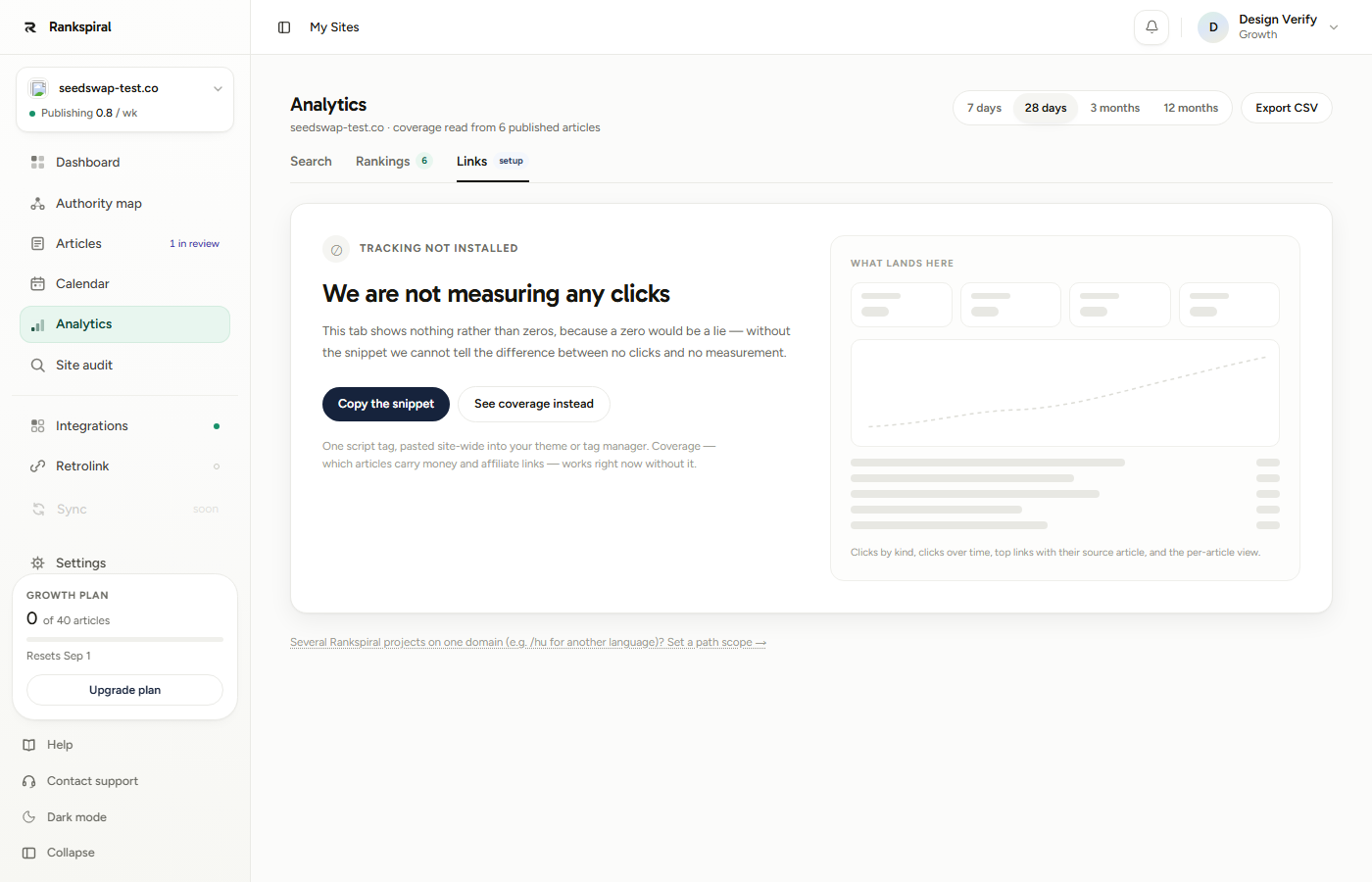
The snippet looks like this, with your own token in place:
<script async src="https://rankspiral.com/api/t" data-rs-site="YOUR_TOKEN"></script>Where exactly to paste it depends on your CMS, and this is the step where most installs go sideways. Many CMSs silently strip script tags out of article content, so pasting it into a post body does nothing. Put it in the site-wide slot:
| Platform | Where the snippet goes |
|---|---|
| WordPress | Your theme's header or footer, via the theme editor or a header-and-footer plugin. Do not paste it into a post. |
| Shopify | theme.liquid, just before </head>. |
| Webflow | Site settings → Custom code (needs a paid site plan). Webflow's CMS rich text strips scripts, so this is the only path. |
| Framer | Site settings → custom code. Same story: CMS rich text will not carry a script. |
| Anything else | Google Tag Manager or your existing tag manager works everywhere. |
The green banner is the only proof that matters. Do not trust "I pasted it" from a CMS, a plugin, or a colleague. If the Links tab says Receiving with a recent last-event time, the install works. If it still says Tracking not installed, it does not, whatever the theme editor claims.
Reading the Links tab
The tab never shows a number it cannot stand behind, so it has four distinct states. Knowing which one you are looking at saves a support ticket:
- Tracking not installed - no event has ever arrived. The tab deliberately shows nothing rather than zeros, because without the snippet it cannot tell "no clicks" from "no measurement".
- Receiving, nobody has clicked a link yet - the tracker is alive and counting pageviews, but no tracked link has ever been clicked. This zero is real, and usually means your articles lack clickable routes (see coverage, below).
- Receiving, no clicks in range - clicks exist, just not inside the date range you picked. The screen names the last tracked click and offers to widen the range.
- Receiving - the full view, below.
Once clicks flow, the tab fills in:
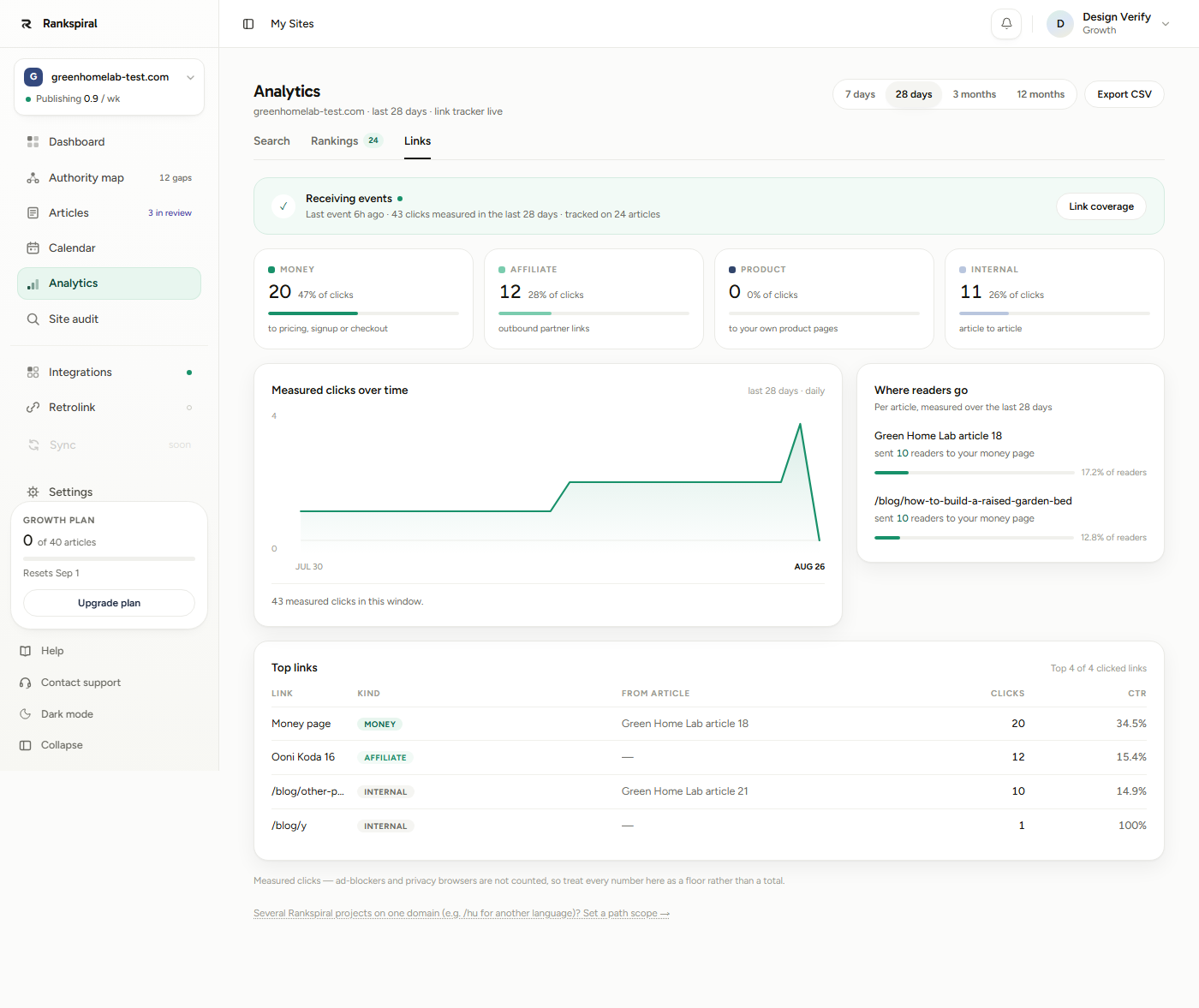
Top to bottom: the Receiving events banner with the last event time and how many articles clicks came from, four cards splitting clicks into Money, Affiliate, Product and Internal, a daily Measured clicks over time chart, and Where readers go, which names the articles that sent readers to your money pages.
The Top links table at the bottom is where the money conversation happens. Each row shows the link, its kind, the article it was most clicked from, the click count, and a CTR: clicks divided by measured pageviews on the page hosting the link.
Everything on screen respects the range picker (7 days, 28 days, 3 months, 12 months), and Export CSV gives you the top-links table as a file.
One honest limit: raw click events are kept for 30 days, so the 3-month and 12-month ranges can only show clicks from the last 30 days. Treat the wider ranges as a way to catch older Search Console and rankings data on the other tabs, not older clicks.
The coverage view
Click Link coverage in the banner (or See coverage instead before install) and the tab switches to a different question: not "what got clicked" but "what is there to click".
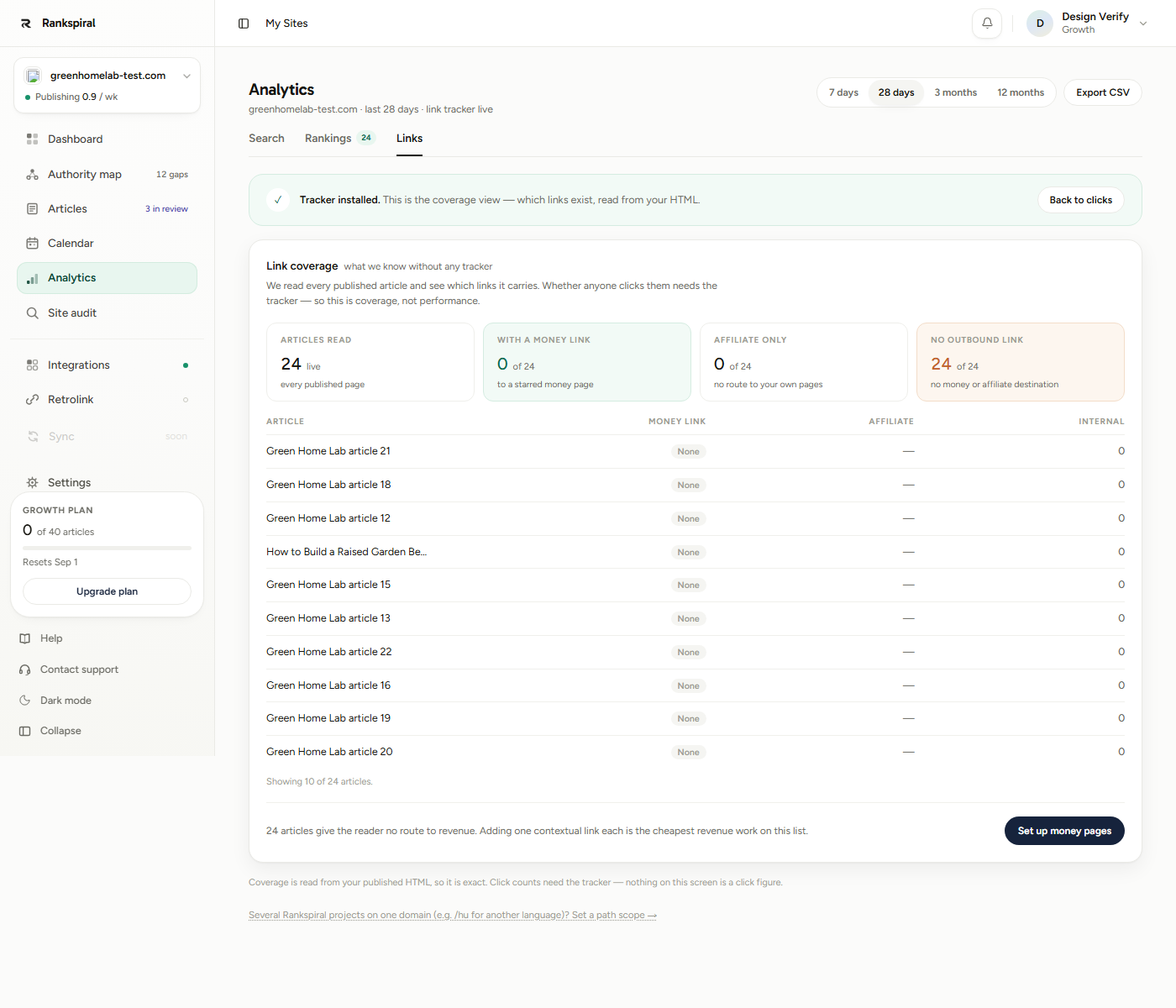
Coverage is read straight from your published HTML, so it is exact and needs no tracker at all. It counts how many articles carry a money link, how many carry only affiliate links, and, most usefully, how many give the reader no route to revenue whatsoever.
That last number is the cheapest revenue work on your site. An article with traffic and no outbound destination is a dead end you already paid for.
Several projects on one domain
Some sites run one domain in several languages as separate RankSpiral projects: site.com in English as one project, site.com/hu in Hungarian as another. Each project has its own snippet with its own token, and the fix is pleasantly boring: install both snippets site-wide, then tell each project which paths belong to it.
That setting is the Path scope card, behind the small link at the bottom of the Links tab ("Several RankSpiral projects on one domain... Set a path scope").
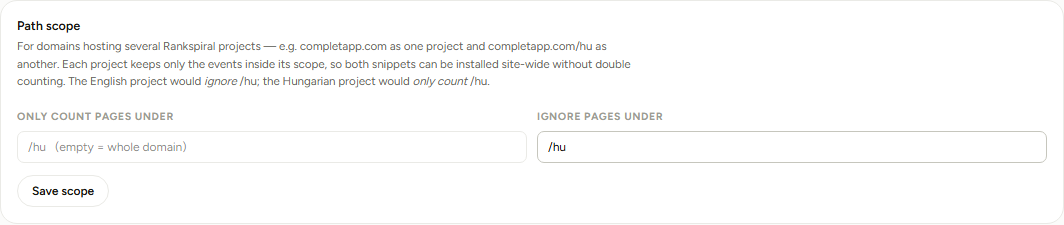
For the site.com plus site.com/hu example:
- The English (root) project sets Ignore pages under to /hu.
- The Hungarian project sets Only count pages under to /hu.
Each project then keeps only the events inside its own scope, so nothing double-counts even though both snippets fire on every page. Click Save scope; it applies to new events from that moment on, and already-stored events keep their range.
Paths must start with /, and the ignore field takes up to five comma-separated paths. A single-project domain never needs to touch this card, which is why it stays folded away.
Advanced: serve it through your own domain
The snippet sends its beacons to whatever origin served the script. That one design choice makes first-party proxying work with zero modification: serve the script from your own domain, and the beacons go to your domain too.
Concretely, your proxy needs two routes:
- GET /api/t - return the script fetched from https://rankspiral.com/api/t (it is cacheable for a day).
- POST /api/collect - forward the request body verbatim to https://rankspiral.com/api/collect. No headers to preserve, no signing. The body is the whole message.
Then embed the snippet with your own domain in the src, keeping your data-rs-site token exactly as copied.
Two reasons to bother. First-party scripts survive most ad blockers, so your counts get materially closer to the truth. And your visitors' IP addresses never transit RankSpiral's servers at all, which turns a strong privacy posture into an airtight one for your own privacy policy.
Getting the most out of it
Read the numbers as a floor, never a total. Ad blockers and privacy browsers eat a real share of beacons, commonly somewhere between a fifth and a third depending on how technical your audience is. The absolute count is conservative; comparisons between your own articles are still fair, because the blockers bite every page equally.
Fix coverage before you stare at clicks. If the "no outbound link" count in the coverage view is high, that is the problem, and no amount of dashboard-watching changes it. Star your money pages and add your partner links in Settings → Offerings first, then let newly generated articles carry them.
Run the placement experiment. Find an article in Where readers go that gets pageviews but sends nobody to a money page. Move or add one contextual money link in the first third of the article, then compare its money clicks over the next 28 days. This is the highest-leverage 10 minutes this feature enables.
Compare CTR only within a kind. A comparison post sending 15 percent of readers to an affiliate link and a beginner guide sending 2 percent to pricing are both performing normally. Commercial intent, not writing quality, sets the baseline, so judge each article against its siblings.
Check the tab weekly, not hourly. Click counts on a young site are small, and small numbers wobble. A weekly look at the 28-day range shows real movement; a daily look mostly shows noise.
Troubleshooting
- Pasted the snippet, tab still says "Tracking not installed". The script is not reaching your published pages. View a live page's source and search for
data-rs-site: if it is missing, your CMS stripped it (move it to the site-wide slot) or a cache is serving old HTML (purge it). Also check you copied the snippet from the same project you are looking at; every project's token is different. - You clicked a link yourself and nothing appeared. Only recognized links are stored: money pages, partner links, and your own internal links. Clicks on other external links are dropped by design. If you run an ad blocker, your own click likely never left the browser. And if a path scope is set, clicks on pages outside it are ignored on purpose.
- Counts are lower than Google Analytics or Search Console. Expected, for two reasons: blocked beacons, and the fact that this tracker counts only link clicks and pageviews, nothing else. Use it for direction, not reconciliation.
- The chart covers fewer days than the range you picked. Raw click events are kept for 30 days, so that is the deepest history any range can show.
One sentence to keep: a ranking is a promise, a click is a result, and this tab is the only place in the product that measures results.
Site settings: money pages and partner links live in Offerings→ Rank Tracking: the other half of the Analytics picture→ Measuring results in Search Console→Was this page useful?
Tell us what was missing and we'll fix the page.