What the Onboarding Wizard Does With Your Answers
The five onboarding screens, what the URL scrape infers, where every answer lands, and why your first trial article is spent automatically.
Updated Aug 26, 2026 · 8 min read
Onboarding asks you eleven or so questions in five screens, most of them in under three minutes, and then something fairly substantial happens off-screen.
People usually only find out what, later, when an article says something odd about their business.
This page traces every answer to where it lands, explains what the URL scrape infers on your behalf, and is honest about the one cost nobody expects: your first trial article is spent automatically, before you have clicked anything.
If you want the click-by-click version of getting through the wizard, the Quick Start Guide covers that. This page is about what the answers do.
The five screens, by their real names
- Tell us about your business - your website URL, project name, description, and any additional URLs.
- Who do you compete with? - up to four competitors, mostly pre-suggested.
- A little about you - industry, referral source, main goal, SEO experience level.
- Set your preferences - target market, language, tone of voice, image style.
- Review and launch - the summary, and the button that starts the build.
Only the first screen does real work. The rest are choices with sane defaults already selected.
What the URL scrape actually reads
Paste your URL on screen one, click out of the field, and a fifteen-second countdown starts. Here is the sequence behind it.
It fetches your homepage, pulls the <title> and meta description as a first draft of your name and description, and checks whether the page is a Shopify store. Then it crawls a handful of your linked subpages (pricing, about, features, products) to get more than one page of context.
All of that text goes to Claude with instructions to extract a specific structure:
What it does (2 to 3 concrete sentences, real product names) · Who it is for (demographics, pain points, use cases) · Features (5 to 10, described not labelled) · Differentiator (certifications, guarantees, approach) · Pricing (plan names and prices if visible) · Competitors (3 to 6 known brands in the same space)
Shopify stores get a different brief: summarise what they sell and who buys it, and skip individual product prices entirely, because product data syncs properly through the store integration later.
Read the auto-filled description before you continue. It becomes the writer's entire understanding of your business, for every article after it. Scrapes go subtly wrong far more often than they go obviously wrong, and a subtly wrong description produces forty subtly wrong articles.
If the scrape fails, nothing downstream breaks. Sites that block bots, sites with almost no homepage text, and sites that time out all fall back to a partial fill with a message telling you to check the fields. You type it yourself and continue.
Where each answer lands
| What you answered | Where it goes | Edit it later in |
|---|---|---|
| Website URL and additional URLs | Your offering's URL list | Settings, Offerings |
| Project name | The site's name | Settings, General |
| Description and scraped details | Your offering's description and structured fields | Settings, Offerings |
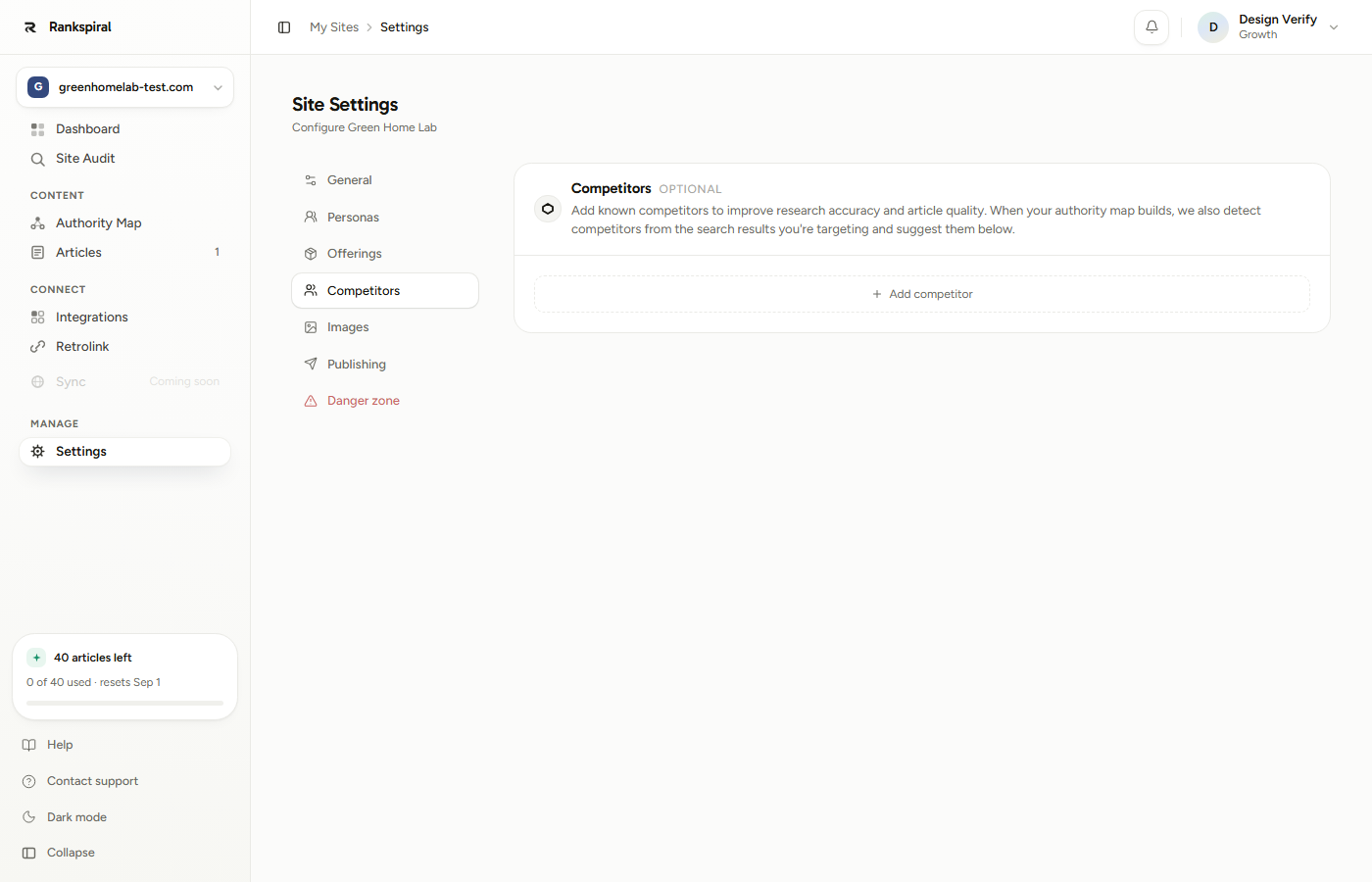
| Competitors | Site settings, used by keyword research | Settings, Competitors |
| Target market | Where rankings are measured and volumes are pulled | Settings, General |
| Language | The language articles are written in | Settings, General |
| Tone of voice | The writing preset | Settings, General |
| Image style | The visual preset for generated images | Settings, Images |
| Industry, goal, experience, referral source | Your account profile | Not editable in site settings |
That last row is the only one-way street, and it is also the least consequential. Those four answers shape onboarding guidance rather than your content.
Target market and Language are separate on purpose. Market decides where rankings are measured and which search volumes are used. Language decides what the writing is in. Selling into Germany in English is a normal combination, and the two fields let you say so.
What happens after you click launch
A full-screen progress page takes over with six steps, and it runs for two to three minutes.
Setting up your project · Discovering pillar topics · Building content clusters · Finding keyword opportunities · Fetching search metrics · Finalizing your strategy
Underneath, it is doing considerably more than that list implies. It builds a seed set from your description and offerings, pulls live keyword suggestions, runs your competitors through a relevance filter, fetches real Google result pages, and groups keywords by shared search results rather than by how similar the words look.
The output is your first authority map: pillars, clusters, and keywords, with volume, difficulty, and CPC attached. You land on it when the page finishes.
If the map build stumbles, it retries up to three times before giving up, and even a failed build still leaves you with a working project you can build the map into by hand.
The thing nobody expects: your first article is already spent
The trial includes two articles and runs for three days.
The moment the map finishes, onboarding picks a keyword and writes an article, automatically, without asking. That article spends one of your two trial articles.
This is the real pipeline, not a sample or a preview. It debits your allowance exactly like any other article, and it runs the full write, images, links, and meta stages. Treat it as your quality test rather than as a freebie.
Two details worth knowing about that article.
It picks the first informational keyword in your map, walking pillars and clusters in creation order. And it approves its own brief and writes straight through, regardless of what any later Auto-Write setting says, so you cannot intercept it at the outline.
What you can do is read it properly. Every problem you spot in that article is fixable once, in settings, for the next thirty.
Every inference is editable, and here is how to fix each one
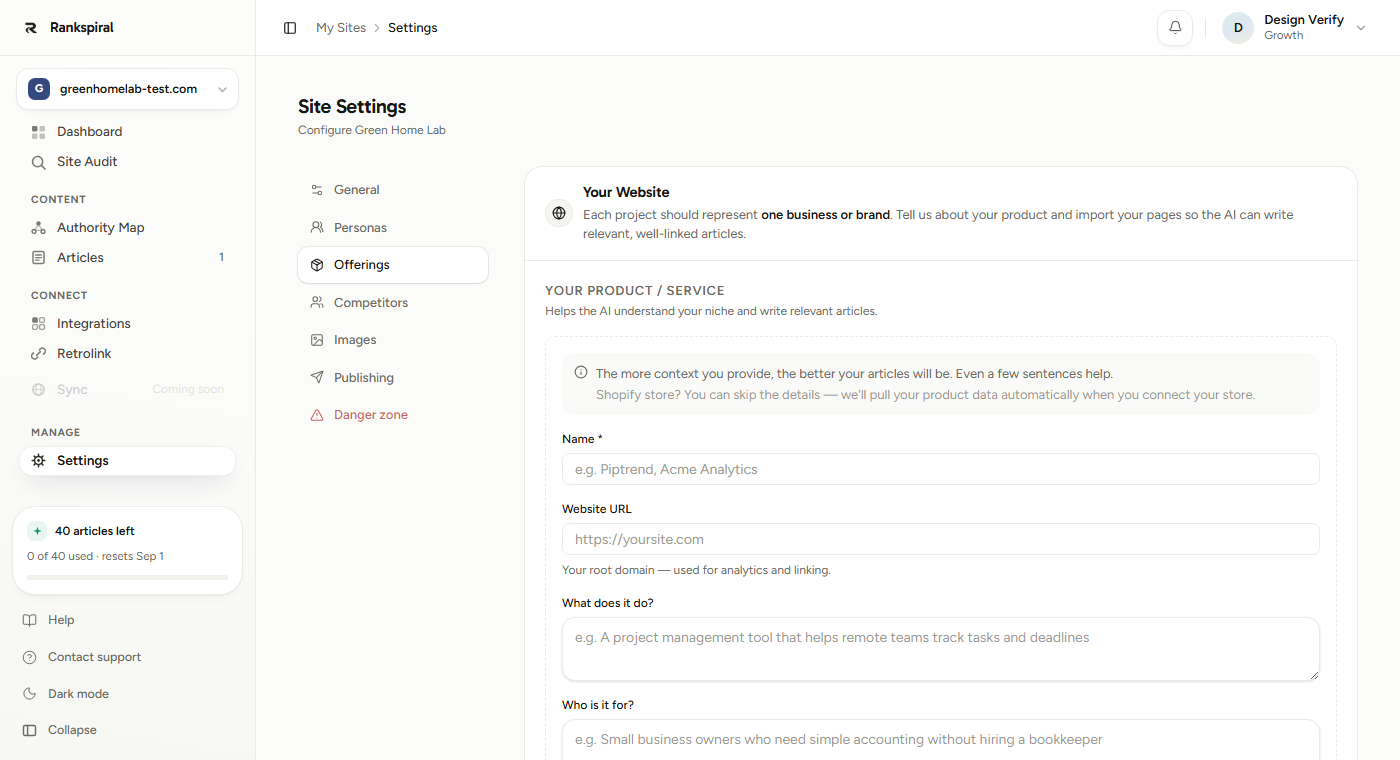
- The description is wrong or vague. Go to Settings, Offerings. The scrape filled What does it do? and Who is it for?, and rewriting those two fields in your own words is the highest-value fifteen minutes available to you.
- The competitors are not your competitors. Settings, Competitors. Remove the wrong ones and add real ones with their domains. Research treats a suggested competitor and a typed one identically, so this genuinely changes the keywords you get.
- The voice is not yours. Settings, General holds the tone preset, and from Growth up you can replace it with a written voice description. Write behaviors, not adjectives: "short sentences", "real numbers instead of vague claims", "never use the words leverage or seamless".
- Articles do not link to anything you sell. Also Settings, Offerings. Offerings are what the internal-linking stage points at, so an article written before you fill them in has nowhere useful to point.
- The map is thin or slightly off-topic. Fix the description and competitors first, then rebuild the map. You get three map builds per site per calendar month, resetting on the 1st.
Auto-Write is on for every site created through onboarding. Articles run straight from brief to finished draft without pausing for your approval. If you would rather steer the structure first, switch it off in Settings, General.
Getting the most out of it
Do screen one twice. Let the scrape run, then read what it wrote and edit it before clicking Continue. Two minutes here beats an hour of settings archaeology in week three.
Add one competitor you genuinely lose deals to. Not the biggest brand in your category, the one that competes for the same customer. Research uses them for angles and gaps, and a giant you will never outrank contributes mostly noise.
Pick Conversational if you are unsure of the tone. It is the hardest preset to make boring, and it reads well to both people and AI search engines, which increasingly quote content that sounds like a person answering a question.
Spend your second trial article deliberately. You have exactly one left after onboarding. Change something first (the voice description is the obvious candidate) so the second article tells you whether your edit worked.
If something went wrong
- Auto-fill never finished. Some sites block scrapers and some have almost no homepage text. Type the name and description yourself. Nothing downstream is harmed.
- The competitor list came back empty. The model could not identify any from your niche. Add your own on the next screen, or later in Settings.
- The build page showed an error. Refresh and try again. Onboarding refuses to run twice for the same account, so if a project already exists you will land on it instead.
- No first article appeared. The map produced no keywords to pick from, usually because the build failed. Your trial article was not spent in that case, and you can queue one yourself from the Authority Map.
- Keywords show no volume or CPC. That data comes from Google Ads, and a keyword nobody bids on shows blank. It often means low competition, which is good news wearing an unhelpful disguise.
Onboarding is not a form. It is the product making about a dozen guesses about your business, quickly, from a homepage.
Most of them will be right. The twenty minutes you spend correcting the rest is the cheapest quality work you will ever do here.
Was this page useful?
Tell us what was missing and we'll fix the page.