Google Search Console
Connect Search Console for clicks, impressions, top pages and sitemap pinging, plus the property-string trap that breaks most setups.
Updated Aug 26, 2026 · 8 min read
Rank tracking tells you where you appear. Search Console tells you whether anyone came.
Connecting it takes about ten minutes, once, and it is the highest-return ten minutes in the whole product. This page covers the setup, the one property-string trap that catches nearly everyone, and the three places the data shows up.
What it powers
Search Console is not a single card any more. One connection feeds four surfaces:
- The Search performance explorer on your project dashboard, covering the last 30 days.
- Top pages, your five best-performing URLs by clicks, on the same dashboard.
- My sites sparklines, a clicks trend per site plus an aggregate across every connected site in your portfolio.
- Sitemap pinging, which resubmits your sitemap to Google after every successful publish.
That last one is easy to miss. It is also the only way RankSpiral can tell Google that something new exists, so it is worth connecting for that alone.
How to connect
Search Console has no simple API key, so this uses a Google service account. It sounds heavier than it is: you create a robot user in Google Cloud, download its key file, and give that robot access to your property.
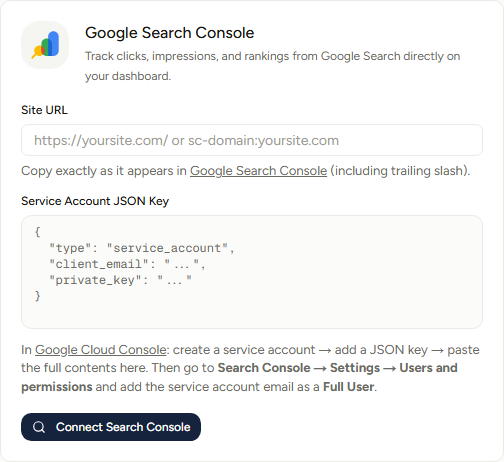
In Google Cloud Console
- Create a project, or use an existing one.
- Enable the Google Search Console API.
- Create a Service account, then add a Key of type JSON and download it.
Open the file. It contains a client_email that looks like something@your-project.iam.gserviceaccount.com. That address is the robot user you are about to grant access to.
In Search Console
Go to Settings → Users and permissions, add that email, and set its permission to Full.
Restricted is not enough. Restricted can read performance data, so the connection will succeed and your charts will fill in. Submitting a sitemap needs write access, so the post-publish ping will fail every time with a permission error you never see. Set it to Full now and skip the confusing month.
In RankSpiral
Open Integrations and find the Google Search Console card. Two fields:
- Site URL - the property string, copied exactly from Search Console.
- Service Account JSON Key - the entire contents of the downloaded file, braces included.
Click Connect Search Console. RankSpiral runs a live query against your property before it saves anything, so a green Connected chip means real data came back rather than that the form looked valid.
The property-string trap
This is where nearly every failed connection comes from, and it is not your fault. Search Console has two kinds of property and they identify themselves in completely different ways.
| Property type | What to paste | Notes |
|---|---|---|
| Domain property | sc-domain:yoursite.com | No scheme, no slash. Covers every subdomain and both protocols. |
| URL-prefix property | https://yoursite.com/ | The trailing slash is part of the string. So is www if your property has it. |
There is no fuzzy matching on Google's side. https://yoursite.com without the slash is a different string from https://yoursite.com/, and one of them returns a permission error. Copy the value out of the Search Console property switcher rather than typing it.
Domain properties have one extra consequence. When RankSpiral needs to find your sitemap for the post-publish ping, it derives your site's address from the property string. A sc-domain: value has no address in it, so the automatic lookup cannot run. Set your sitemap manually under Settings → Offerings and the ping works normally.
Reading the data
Search performance
The dashboard card covers the last 30 days and carries four metric chips: Clicks, Impressions, CTR, and Avg pos. Each chip shows its own total and toggles that series on the chart.
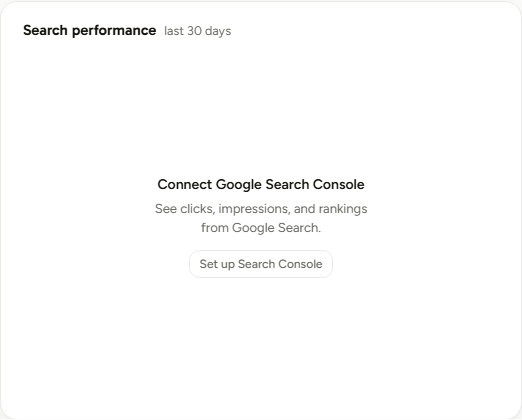
Clicks and Impressions are on by default. Add CTR or position and the curves are scaled to each metric's own 30-day peak, because impressions run roughly twenty times clicks and one shared axis would flatten the smaller line into the floor.
Select a single metric and the axis switches to real values. Hovering always shows real numbers regardless.
Position is inverted inside the chart so that up means better, matching every other trend line on the page.
Top pages
Your five highest-click URLs from the same 30 days, each with its click count and average position. Short, and more useful than it looks: it tells you which article is carrying the site.
My sites
Every connected site gets a clicks sparkline on its portfolio card, and the sites page adds them up into one portfolio-wide trend. A site that has not been connected simply shows nothing there, which is its own quiet nudge.
The sitemap ping
After each successful publish, RankSpiral resubmits your sitemap through the Search Console API. Google retired its old open ping endpoint, so this is the sanctioned route.
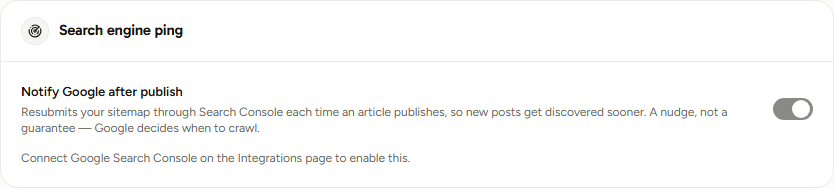
The toggle lives in Settings → Publishing, under Search engine ping, and it is on by default. It stays disabled until Search Console is connected, because it has no way to work without it.
RankSpiral finds your sitemap in this order: the URL you set under Settings → Offerings, then one it detected previously, then a probe of /sitemap.xml and /sitemap_index.xml on your property's address.
The card reports the last outcome underneath, either a timestamped confirmation or the specific reason it failed.
Nothing here can break a publish. The ping runs after the article has already gone live and fails quietly if Google is unhappy. A red line on this card is worth fixing, never worth panicking about.
Getting the most out of it
Connect it in week one, before you have any data. Search Console does not backfill for RankSpiral, and it only reports from the point your property started collecting. Waiting three months to connect costs you three months of history you can never see here.
Watch impressions, not clicks, for the first quarter. Impressions move months before clicks do, and they are the earliest honest signal that Google has started showing your pages to anyone. A young site with 400 impressions and 2 clicks is working. A young site with 6 impressions is not yet indexed properly.
Hunt the high-impression, low-CTR pages. Turn on the CTR chip and compare it against the impressions curve. A page collecting impressions with a flat CTR is a title-tag and meta-description problem, not a content problem, and rewriting two lines is a twenty-minute fix with a same-week payoff.
Cross-check Top pages against your Authority Map. If your best-performing article sits in a pillar you were treating as secondary, that is the market telling you where your authority actually is. Write three more in that cluster before you write one anywhere else.
Prefer a Domain property when you set one up in Google. It covers www and non-www, http and https, and every subdomain, which removes an entire category of "why is there no data" confusion. Just remember to set the sitemap URL manually afterwards.
Give the service account access to every property you track. One service account can be added to any number of Search Console properties, so a portfolio of eight sites needs one Google Cloud setup and eight two-second permission grants, not eight of everything.
Troubleshooting
- "Could not connect to Search Console" when saving. RankSpiral tested the connection and Google refused. In order of likelihood: the property string does not match exactly, the service account was never added to the property, or the Search Console API is not enabled on the Cloud project.
- "Service account key is not valid JSON." The paste is partial or was reformatted somewhere along the way. Open the downloaded file in a plain text editor and copy all of it, opening brace to closing brace.
- Connected, but the chart is empty. Google has recorded no impressions in the last 30 days. For a site under a few months old this is normal, and the card says so rather than pretending something is broken.
- Numbers do not match Search Console's own UI. RankSpiral requests the freshest available data, including the incomplete last day or two, and Search Console's default view filters some of that out. The shape of the trend will agree; the totals can differ slightly.
- "Search Console rejected the request" on the ping card. The service account has Restricted permission. Change it to Full under Settings → Users and permissions.
- "No sitemap found" on the ping card. Either your site has no sitemap at the usual paths, or you are on a Domain property, where automatic detection cannot run. Set the URL under Settings → Offerings.
Ten minutes of Google Cloud paperwork buys you the only number in SEO that is not a proxy for something else.
Do it in your first week, then leave it alone for three months... and when you come back, the answer will already be there.
Was this page useful?
Tell us what was missing and we'll fix the page.