WordPress
Connect WordPress with an Application Password, and see exactly what lands on your site: featured image, clean HTML body, slug, and live post URL.
Updated Aug 26, 2026 · 6 min read
WordPress is the easiest CMS to connect here, and the one people most often connect wrong on the first try.
It takes three fields and about two minutes. This page covers those three fields, exactly what lands on your site when you publish, and the four things that break it.
What it does
RankSpiral talks to your site through the WordPress REST API, which every modern WordPress install has switched on by default.
Publishing an article creates a real post: title, formatted body, slug, and a featured image uploaded to your media library. The live URL comes back and gets saved onto the article in RankSpiral, so the Published panel links straight to the post.
Posts go live immediately. RankSpiral creates them with published status, not draft. Nothing waits for you inside WordPress, so the moment to review an article is the In Review stage in RankSpiral.
WordPress publishing is available on every plan, trial included.
What you need
- A site the internet can reach over HTTPS. Localhost, private IPs, and internal hostnames are blocked deliberately.
- The REST API responding. On by default. Some security plugins turn it off, which is the single most common cause of a failed connection.
- An Application Password. Not your login password. WordPress has generated these since 5.6 and they are the supported way for an app to authenticate.
Self-hosted WordPress works. WordPress.com works on plans that expose the REST API and Application Passwords, which in practice means Business and above.
How to connect
Open Integrations in your project and find the WordPress card.
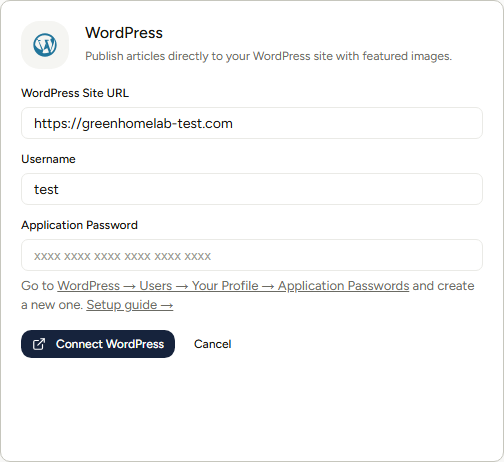
- WordPress Site URL - the root of your site, for example
https://yoursite.com. A trailing slash is fine and gets stripped. Do not point it at/wp-adminor at the blog subpage. - Username - your WordPress login name, not the display name and not the email address.
- Application Password - in WordPress, go to Users → Profile → Application Passwords, name it something like "RankSpiral", and generate. Copy the whole thing, spaces and all.
Click Connect WordPress.
RankSpiral immediately calls your site's REST API and authenticates. Nothing is saved until that call succeeds, so a green Connected chip means the credentials genuinely work rather than merely being well formed.
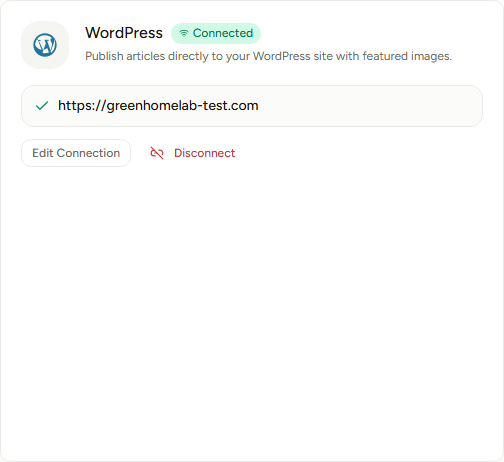
The password is encrypted before it is stored, and it is never sent back to your browser afterwards. Editing the connection always asks for it again, which is not a bug.
What happens when you publish
Press Publish on a finished article and RankSpiral does five things in order.
- Uploads the hero image to your media library. It is fetched, checked, and posted to WordPress as an attachment named after the article. The image's alt text goes with it.
- Converts the article to HTML and strips the leading H1 and the hero image out of the body, because WordPress renders both from the post title and featured image. Leaving them in shows the title twice.
- Appends FAQ schema when the article has a FAQ section and the project setting is on.
- Creates the post with your title, the body, the slug set in RankSpiral, and the featured image attached.
- Saves the live URL back onto the article, which is what fills the Published link in the article sidebar.
The featured image is best effort. If the upload fails, for a file-permission reason or a plugin blocking media uploads over REST, publishing continues anyway and you get a post without a featured image. That is deliberate: a missing thumbnail should not cost you the article.
Some things you might expect are not there. There is no category, tag, or author assignment, so posts land in your default category, authored by the account whose Application Password you used. Set your defaults in WordPress and they apply to everything RankSpiral sends.
Getting the most out of it
Create a dedicated WordPress user for this. Call it "RankSpiral", give it Author or Editor, and generate the Application Password there. Every post is then attributed to that account, which means you can find them all in one filter, and revoking access later is one click instead of a password reset for a human.
Set your default post category before the first publish. WordPress drops uncategorised posts into Uncategorized, and fixing forty of those afterwards is a genuinely tedious afternoon. Rename or reassign the default under Settings → Writing and the problem never starts.
Test the REST API in your browser before you blame the integration. Open yoursite.com/wp-json/wp/v2/users/me. A JSON response asking you to log in is healthy. A 403, a 404, or your security plugin's block page tells you the problem in five seconds and saves you re-typing the password four times.
Publish one article, then look at it on the front end. Not in the editor, on the actual site. Theme-specific problems, a duplicated title, or images sitting at full width all show up there and nowhere else, and they are all fixed once for every future article.
Keep the slug short before you publish, not after. RankSpiral lets you edit the slug on the article, and that is the slug WordPress uses. Changing it once the post is live means a redirect, and everyone forgets the redirect.
Retrolink's CMS sync creates a second post. When Retrolink adds internal links to an already-published article and you sync those changes to WordPress, RankSpiral creates a new post rather than updating the existing one. Until that changes, treat WordPress internal-link updates as something to paste into the existing post by hand.
Troubleshooting
- "Invalid username or application password." Authentication was refused. Check the username is the login name, and that you pasted the Application Password rather than your account password. Regenerate the Application Password if in doubt: they are free.
- "Could not connect to yoursite.com. Check the site URL." The site answered, but not with a working REST API. Nine times out of ten this is a security plugin such as Wordfence or iThemes blocking
/wp-json. Allow the REST API, or whitelist authenticated requests. - "Could not reach yoursite.com." The address did not resolve or did not respond at all. Check for a typo, confirm the site is on HTTPS, and confirm it is publicly reachable rather than behind a staging password.
- "WordPress returned an error (400)." The post was rejected. The usual causes are a duplicate slug, or a plugin adding a required field to posts. Check the post list in WordPress: sometimes a partial post is sitting there.
- Published, but no featured image. The media upload failed while the post succeeded. Check that the Application Password user can upload files, and that no plugin blocks media uploads over the REST API.
- The title appears twice on the live post. Your theme prints the post title and your content also contains one. RankSpiral removes the article's H1, so a second title usually means a page builder or a theme template adding its own.
Two minutes of setup, and then publishing stops being a task you do and becomes a button you press.
Spend the third minute checking the first post on the front end, and you will not have to look again.
Was this page useful?
Tell us what was missing and we'll fix the page.