Shopify
Publish to your Shopify blog and sync your catalogue so articles link to real products at real prices. Setup, sync limits, and republishing.
Updated Sep 9, 2026 · 9 min read
Most store blogs exist to be ignored. They fill up with "5 Tips For Spring" and nobody links to them, including the store.
The Shopify integration is built around the one thing that makes a store blog worth writing: your product catalogue is synced into RankSpiral, so articles can name real products, at real prices, with real links. This page covers the setup, the sync, and how to make the linking actually land.
What it does
Three things, in the order they matter.
- Publishes articles to your Shopify blog with formatted HTML, a slug, and a featured image, live on your store.
- Syncs your catalogue so the writer knows your products and collections by name, price, and URL, and links to them where it fits.
- Updates published posts in place when Retrolink adds internal links to older articles, rather than creating duplicates.
Shopify publishing is available on every plan, including the trial.
Posts publish live. RankSpiral creates the blog article already published, so it appears on your store immediately. Your review gate is the In Review stage in RankSpiral.
Setting up the Shopify side
Shopify stopped handing out static Admin API tokens, so this runs on a custom app with a Client ID and Client Secret. RankSpiral exchanges those for short-lived tokens automatically, which means nothing to rotate and nothing to store on a sticky note.
It is four screens in Shopify's Dev Dashboard, and about five minutes.
Create the app
- In Shopify Admin, go to Settings → Apps and sales channels → Develop apps.
- Click Build apps in Dev Dashboard, then Create app.
- Name it something obvious, "RankSpiral" for instance, and select your store.
Configure it
- Open Configuration.
- Set the App URL to
https://rankspiral.com. Leaving the placeholder in place is what produces the alarming red security warning after installation, and it is purely cosmetic damage that you can avoid in four seconds. - Leave Embed app in Shopify admin unchecked. RankSpiral is not an embedded app.
- Under Admin API integration, enable exactly two scopes:
read_productsfor the catalogue sync andwrite_contentfor blog publishing. - Save.
Install it and copy the credentials
- From the app's Overview, click Install app, pick the store, and confirm.
- Copy the Client ID, then reveal and copy the Client Secret.
Changing scopes later needs a reinstall. Shopify version-locks the permissions an installed app holds. Adding a scope, releasing a new version, and skipping the reinstall gives you an app that says it has permission and behaves as though it does not.
Connecting in RankSpiral
Open Integrations in your project and find the Shopify card.
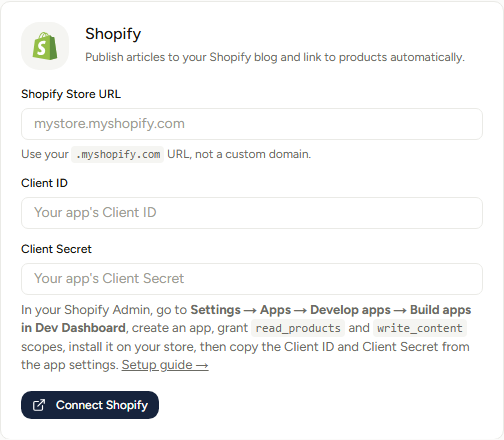
Three fields:
- Shopify Store URL - your
.myshopify.comaddress, found under Shopify Admin → Settings → Domains. A bare store name works too: typemystoreand RankSpiral fills in the rest. - Client ID - from the app you just installed.
- Client Secret - same place.
Your custom domain will not work here, and this is the single most common setup mistake. RankSpiral needs the myshopify address to authenticate, then discovers your custom domain by itself and uses it for every product link and post URL afterwards.
Click Connect Shopify. RankSpiral requests a token, calls your store, and only saves if both succeed.
Your catalogue syncs automatically on the first connect. No second button to press. The card then shows a count like 84 products, 12 collections synced, which is your confirmation that the read_products scope is genuinely working.
The catalogue sync
This is what separates the Shopify integration from a generic blog connector.
RankSpiral pulls your products and both kinds of collection, custom and smart, and keeps a local copy the writer can read while it works. For each product it stores the title, handle, product type, live URL, a trimmed description, the current price, the compare-at price, the variant names when there is more than one, and the first image.
That detail is why the linking reads like a person wrote it. The article does not say "check out our products". It says the thing, at the price, linked.
Which products get linked is chosen by relevance, not sync order: each article sees the items closest to its keyword and title, so a watering guide meets your irrigation gear even in a 500-product catalogue. Product links are capped by article shape (a listicle up to 12, comparisons 6, guides 3) and never placed in a sentence that criticises the product.
Our Deep Bed Cloche, at 89 dollars, covers a full 1.2 metre bed and packs flat over winter.
The catalogue also refreshes itself automatically once a day, so new products, price changes, and deletions arrive without you pressing anything. Sync Products on the card is for when you cannot wait; it also re-reads your custom domain and repairs any older article URLs that still point at the myshopify address, which is handy after a domain change.
Every sync, manual or automatic, diffs the catalogue against the previous one. When a product you deleted is still linked from published articles, those links surface in the Broken money links panel on the Links page, each with a one-click fix. No more readers landing on a dead product page a month after you retired the item.
The sync takes the first 250 products and the first 250 of each collection type. Larger catalogues are truncated, without an error. If you run thousands of SKUs, assume the writer only knows a slice of them and mention your priority products in Settings → Offerings so they are guaranteed to be in scope.
What happens when you publish
- RankSpiral finds your store's blog. If the store has more than one, it uses the first. If it has none, it creates one called Blog.
- The article's own H1 and hero image are stripped from the body, because Shopify renders both from the post title and featured image.
- FAQ schema is appended when the article has a FAQ section and the setting is on.
- The post is created as published, with the slug you set in RankSpiral and the hero image attached with its alt text.
- The live URL is saved back onto the article.
There is no blog picker. A store with a News blog and a Guides blog will get everything in whichever Shopify returns first, and the saved link assumes the standard /blogs/blog/ path. If your blog handle is something else, the post is correct and the saved link may point at the wrong path.
Republishing
When Retrolink goes back through older articles and adds internal links to them, syncing those changes to Shopify updates the existing post rather than creating a second one. RankSpiral finds it by handle, falling back to the article slug.
Rename a post's handle inside Shopify and that lookup breaks, which is what the message Could not find existing Shopify article means.
Getting the most out of it
Fill in Offerings even though the catalogue is synced. The sync tells the writer what you sell. Settings → Offerings tells it what you want pushed. Three or four entries covering your highest-margin products is fifteen minutes that changes which items get mentioned in every article from then on.
Write your product descriptions for the sync, not just the product page. RankSpiral reads the first stretch of each description, so a first line of "Premium quality. Free shipping." teaches the writer nothing. A first line naming the material, the size, and who it suits gives it something to work with in an article.
Sync manually when a price change cannot wait a day. The daily automatic refresh catches pricing within 24 hours, but an article confidently quoting yesterday's price during a launch is worth avoiding. Press Sync Products the moment a sale goes live.
Target buying-adjacent keywords, not just informational ones. "How to overwinter raised beds" links naturally to cloches and fleece. "History of the raised bed" links to nothing you sell. The catalogue only pays off when the topic is one step away from a purchase, so bias your Authority Map that way.
Read the first three published posts on your storefront. Shopify themes style blog rich text unevenly, and problems with list spacing or image widths show up on the live theme and nowhere else. Fix the theme once and every future article inherits it.
Set your blog's SEO basics in Shopify, not here. RankSpiral sends the post; your theme and Shopify settings decide the breadcrumbs, the related posts, and the blog index. Those are worth twenty minutes once.
Troubleshooting
- "Invalid Client ID or Client Secret." The token request itself failed. Re-copy both values from the Dev Dashboard, watching for a trailing space, and confirm you are using the credentials from the app installed on this store.
- "Invalid credentials or insufficient permissions." Authentication worked, the API call did not. Usually a missing scope: confirm
read_productsandwrite_contentare both enabled, then release a new version and reinstall. - "Please enter your .myshopify.com URL" You used a custom domain. Find the myshopify address under Settings → Domains and use that. Your custom domain is picked up automatically after connecting.
- Products are not being mentioned in articles. Check the card shows a synced count. Zero means the scope is missing. A count that looks too low means you are over the 250 cap.
- A red "unsafe content" warning after installing the app. The App URL is still the Shopify placeholder. Set it to
https://rankspiral.comin Configuration, save, and release a new version. - "Could not find existing Shopify article." A republish could not locate the post, usually because its handle was changed inside Shopify. Publishing again creates a fresh post.
- Articles land on the wrong blog. RankSpiral uses the first blog your store returns and offers no picker. Stores with several blogs should keep the intended one as the only one, or move posts after the fact.
The setup is the boring part and you only do it once.
The part that compounds is the catalogue sync, because every article you publish afterwards knows what you sell... and a store blog that links to products is the only kind that pays for itself.
Was this page useful?
Tell us what was missing and we'll fix the page.