Publishing Your Articles
Manual publish, auto-publish, the review gate, scheduled generation, and the automatic re-push that happens when Retrolink adds internal links.
Updated Aug 26, 2026 · 8 min read
An article that stays in RankSpiral has done nothing for you. The whole point is the moment it lands on your site, and there are four different ways to get it there.
This page covers all four, plus the one that happens without you asking.
Where publishing happens
From the article detail page, and only from there. There is no publish button in the articles list, which trips people up on their first week.
Open an article that has finished generating and the header carries the whole publishing control set.

Before an article is published you get Publish. After, that button becomes Republish and an Unpublish appears next to it.
The Publish button is greyed out until a CMS is connected. Hover it and the tooltip says exactly that: Connect a CMS first to publish. Head to Integrations in the site sidebar.
What "Publish" actually does
It sends the article to every CMS you have connected, one after another, then flips the article's status to Published and stamps the publish date. It also pings Google with your sitemap in the background.
One thing to know about the fan-out: if you have three integrations connected and one succeeds, the article is marked Published. The failures show up as red toasts and nothing else, so read them before you navigate away.
| Integration | Publishing | Updating an already-published post |
|---|---|---|
| WordPress | Creates a post, uploads the first image as the featured image | Creates a second post. See the warning below |
| Shopify | Creates a blog article | Updates the existing article in place, found by handle |
| Webflow | Creates a live collection item | Not supported |
| Framer | Creates a collection item | Not supported |
| Webhook / API | POSTs the article as JSON to your endpoint | Whatever your endpoint does with a second POST |
| Ghost | Listed as coming soon, not yet implemented | Not supported |
Republish to WordPress creates a duplicate post. This is a real, verified bug, not a configuration issue. WordPress publishing always creates a new post rather than updating the existing one, because no WordPress post ID is stored. Until it is fixed, edit WordPress posts in WordPress, and treat Republish as create-again on that integration.
Unpublish only changes the status inside RankSpiral. It does not delete anything from your CMS. If you want the post gone from your site, remove it there.
Auto-publish: skipping the button entirely
Turn it on per site in Settings under the General tab. The switch is called Auto-Publish, described as "Auto publish to connected integrations after generation".
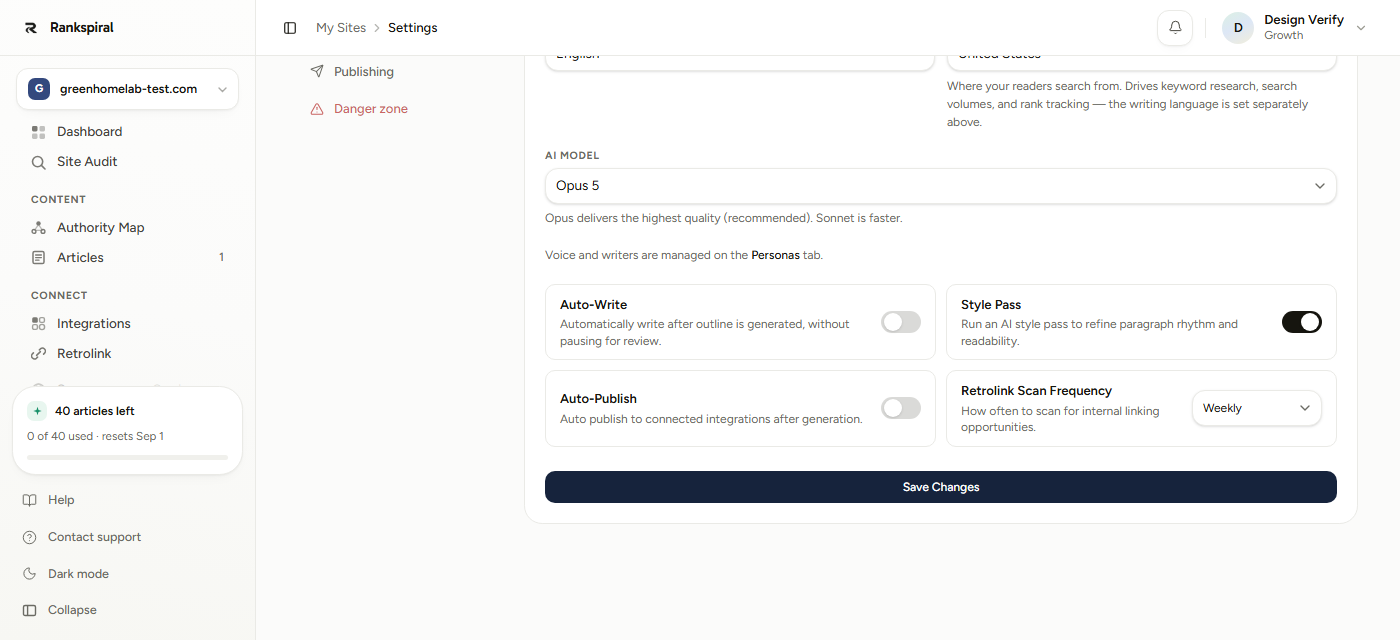
With it on, the article finishes generation, passes briefly through In Review, and goes straight to your CMS. No click, no confirmation.
Auto-publish failures are silent. If your CMS credentials have expired or the endpoint is down, the article stays in review and nothing tells you. There is no email, no banner, no badge. Check your CMS after enabling it, and again after any credential change.
The review gate is on the outline, not the publish
This is the part people get backwards, so it is worth stating plainly: there is no approval step before publishing. The only human gate in the pipeline sits earlier, at the outline.
It is controlled by the Auto-Write switch, next to Auto-Publish. The naming is inverted, which does not help:
- Auto-Write off (the default for projects created directly) means the article stops after the outline and waits for you. The stage strip reads "Outline ready, awaiting your approval".
- Auto-Write on means writing starts the moment the outline exists. Projects created through onboarding get this on.
So the two switches combine into three sensible modes:
Scheduled publishing
Scheduling in RankSpiral happens on keywords, not on finished articles. You set a date on a keyword, and on that date a cron job generates the article. Whether it then goes live depends entirely on Auto-Publish.
Schedule from the keyword row, or in bulk with Auto Schedule on the Calendar tab, which spreads a set of keywords across a start date, a weekly cadence, and an option to Skip weekends.
The generator runs once a day at 08:00 UTC. Each run queues up to 20 due keywords and processes up to 5, so a large backlog drains over several days rather than all at once.
Dates are dates, not times, and they are UTC. There is no "publish at 9am my time". A keyword scheduled for the 14th is picked up by the first run on or after the 14th in UTC. Nothing is skipped if it is overdue, so a past-due keyword is caught on the next run.
The re-publish you did not ask for
This is the section to read even if you skim the rest.
Retrolink, the internal linking engine, edits your already published articles when it inserts links into them. Those edits are worthless if they only exist in RankSpiral, so approving link suggestions automatically pushes the changed articles back to your CMS.
It happens in three situations:
- You approve a link suggestion on the Retrolink page. Approval inserts the links and immediately syncs the affected articles.
- You click Resync to CMS, the button that appears on the Retrolink page once links have been inserted.
- The daily Retrolink scan runs, at 10:00 UTC, if auto-republish is enabled for the site.
The sync only touches articles that are already Published and that recorded a URL when they were first published. Then it re-sends them.
On WordPress, this creates duplicate posts. Same root cause as Republish: the re-send is a create, not an update. If you use WordPress and Retrolink together, expect duplicates, and consider approving links manually so you control when it happens.
Two more honest limits on the same feature:
- Webflow and Framer are excluded entirely. Neither records a published URL, so their articles are invisible to the sync, and neither has an update path anyway. Links inserted by Retrolink will not reach a Webflow or Framer site.
- Only your first-connected CMS is synced. If a site has both Webflow and WordPress connected and Webflow was added first, every article reports as unsupported. Publishing fans out to all integrations; re-syncing does not.
Shopify is the one that behaves correctly here. It looks the article up by handle and updates it in place.
Getting the most out of it
Start with Auto-Write on and Auto-Publish off. That combination gives you the speed benefit without the risk, and reading twenty finished drafts teaches you more about your voice settings than approving twenty outlines does.
Turn Auto-Publish on only after two things are true: you have read five consecutive articles without wanting to change anything, and your CMS connection has survived a week. It is a trust setting, and the failures are silent.
Connect one CMS per site, not three. The fan-out means partial failures mark the article published anyway, and the Retrolink sync only ever targets the first one you connected. Multiple integrations on one site cause more confusion than they solve.
If you are on WordPress, do your link approvals in one weekly sitting. Every approval batch re-pushes the affected articles, so approving in ten small batches is ten chances to create duplicates. One batch, one sweep of your posts list afterwards.
Check the published URL in the sidebar after your first publish. The article sidebar shows the live link once a post URL comes back. If it stays empty on Webflow or Framer, that is expected, not a failure: those integrations do not record it.
You know it worked when the status chip reads Published, the toast offers a View post link, and the article's sidebar shows the live URL. Click it. A post that publishes with a broken featured image is much easier to fix in the first minute than the first month.
When publishing does not work
- The Publish button is greyed out. No CMS connected on this site. Integrations are per site, so connecting WordPress on one site does not connect it on another.
- "WordPress returned an error (401)." The application password is wrong or was revoked. Reconnect it, do not retype it into the old connection.
- A toast says published, but nothing appears on the site. Check whether the post landed as a draft in your CMS, and check the second integration if you have more than one connected. One success marks the article Published.
- Auto-publish did nothing. Confirm the switch is on for this site, then publish once by hand to surface the real error, since auto-publish swallows it.
- Duplicate posts appeared on WordPress. The known bug above. Delete the duplicates in WordPress; there is no setting that prevents it yet.
- "Synced 0 articles. 4 failed." Your first-connected integration is Webflow, Framer or Ghost. Retrolink cannot sync to those.
- A scheduled article never generated. The cron runs once daily at 08:00 UTC and processes 5 per run. A backlog drains over days. Check the keyword is still marked Queued.
The mechanics here are simple, and the sharp edges are all in one place: updating something you already published.
Publish forward, edit at the source, and none of them will bite you.
Connecting WordPress→ Webhook and API publishing, for everything else→ Auto-scheduling your keyword queue→ Retrolink and internal linking→ Connecting your site for the first time→Was this page useful?
Tell us what was missing and we'll fix the page.