AI Editing in the Article Editor
Select text and rewrite it in your site's voice, previewed before it lands. The nine actions, the outline actions, and the 20-per-hour cap.
Updated Sep 9, 2026 · 9 min read
The fastest way to ruin a good draft is to open it and start rewriting from the top.
Most articles need three or four small surgeries, not a rewrite: one paragraph that runs long, one section that would land better as a table, one explanation pitched slightly over the reader's head. AI editing exists for exactly those.
Select the part that bothers you. Fix that part. Leave the rest alone.
Two editors, one page
An article lives at a single URL, and what you see there depends on where it is in the pipeline.
- Before writing, the page shows the Outline card: sections, subheadings, planned word counts. AI actions here reshape the plan.
- After writing, the same page becomes the draft workspace with the body editor in the middle. AI actions here rewrite the prose.
You do not switch between them and there is no tab. The article's own state decides which one you get.
Editing the body
Select any text and a floating toolbar appears above it.

The left of the toolbar is ordinary formatting: a block-style dropdown (Text, Heading 2, Heading 3, Bulleted list, Numbered list, Quote), then bold, italic and link. Those are free and instant. An image button lives here too, and a matching one appears in the left gutter whenever your cursor sits in a paragraph; both open a picker for your uploaded images and one-off uploads, covered on the Images page.
Everything to the right of the divider is AI. They are icon buttons, so hover to see the name:
- Convert to table - turns the selection into a real HTML table. Best on a paragraph that is secretly a comparison.
- Add bullet points - reformats prose as a tight list.
- Expand - adds detail, examples and supporting evidence at the same length ratio you would write yourself.
- Shorten - cuts redundancy, keeps every point.
- Simplify - shorter sentences, plainer words, same meaning.
- Make persuasive - stronger language, benefits pushed forward.
- Add examples - weaves in two or three concrete illustrations.
- Rewrite - a genuinely different angle on the same content.
- FAQ format - restructures into question and answer pairs.
- Custom AI prompt - the sparkle button after the second divider. It opens a text field reading Ask AI to... where you type the instruction yourself.
There is no length limit on a selection. You can highlight one sentence or the entire article, though the useful range is a paragraph or two, because that is where the model can hold the whole thing in view and still respect the voice around it.
Nothing lands until you say so
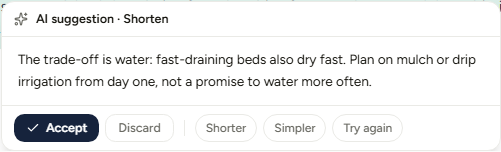
The suggestion opens in a card headed AI suggestion plus the action name. Your article is untouched at this point.
Five controls:
- Accept - the suggestion replaces exactly what you selected.
- Discard - nothing changes.
- Shorter and Simpler - rework the suggestion, not the original. Stack them as many times as you like.
- Try again - throws the suggestion away and re-runs the original action on the original text.
While a suggestion is open the document is locked, which is deliberate: it keeps the target range valid so the replacement lands precisely where you selected.
The lock only lifts on Accept or Discard. There is no Escape key and no click-away. If the editor has gone read-only and you cannot work out why, look for an open suggestion card and dismiss it. Autosave is paused while it is open too.
One subtlety: the lock starts when the suggestion arrives, not when you click the button. If you keep typing during the round trip you can shift the text under the selection, so give it the two or three seconds.
It writes in your voice
Edits are not generic. Before the model sees anything, RankSpiral resolves which voice this article is written in:
- The article's persona, if one is assigned. Its custom voice description, or its tone preset.
- The site's voice otherwise. Your custom voice description, or the selected tone preset.
On top of that, roughly 350 characters either side of your selection travel with the request, clearly marked as context the model must not modify or repeat. That is what makes an accepted edit blend at the seams instead of announcing itself.
The system prompt also bans em dashes outright, so AI edits follow the same house rule as the writing pipeline. If you have set up a voice in Brand Voice, inline editing inherits all of it for free.
Editing the outline, before a word is written
The same intelligence exists one stage earlier, and it is cheaper to use there.
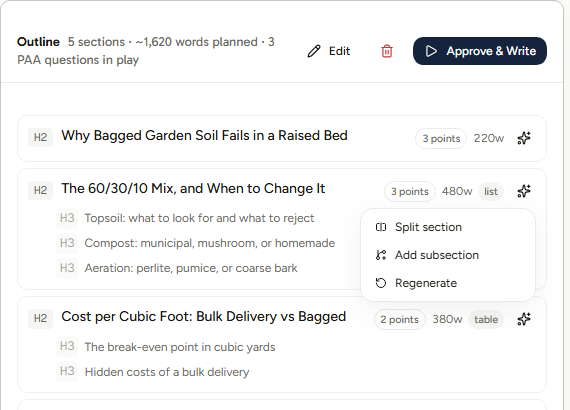
Every section row carries a small sparkle button (its tooltip reads AI actions). Click it and three options appear:
- Split section - breaks one H2 into two, distributing the content and giving each two or three H3 subheadings. Use it when a section's planned word count is over about 600.
- Add subsection - appends one H3 relevant to the section and the article's keyword.
- Regenerate - a fresh heading and two to four new subheadings, on the same topic from a different angle. It clears that section's key points.
The request carries the whole current outline plus up to eight of the People Also Ask questions from research, which is why a regenerated section tends to answer things people actually search rather than things that sound tidy.
There is no preview here. The result is applied to the outline on screen straight away and the card flips into edit mode, where Cancel throws the change away and Save is meant to keep it.
Known issue: pressing Save on an edited outline currently returns Something went wrong. Please try again. and the change is not stored, so it disappears on refresh. We are tracking it. Until it is fixed, treat the outline AI actions as a way to evaluate a different structure rather than commit to one, and use Approve & Write on the outline as generated.
Once writing finishes, the outline card is gone. The outline you see in the left rail of the draft workspace is derived from the finished article's own headings: read-only, click to jump, no AI.
What it costs
Less than people assume, and the limit is not where people assume either.
- It does not touch your article quota. Editing an article a dozen times costs zero of your monthly articles.
- It does not touch the AI keyword suggestion pool. That budget is for the Authority Map and stays there.
- There is no plan gate. Every plan, including the trial, gets AI editing at the same quality.
- It always runs on our keys. Even with your own API keys saved, inline edits bill to RankSpiral rather than to you.
- Formatting is unlimited. Bold, headings, links and lists are local operations and are never rate limited.
What is limited is burst: 20 AI edits per rolling hour, per user, and that budget is shared more widely than most people expect.
| Counts against the 20 | Does not count |
|---|---|
| Every toolbar AI action | Bold, italic, links, headings, lists |
| Every custom prompt | Accepting or discarding a suggestion |
| Every Shorter, Simpler or Try again chip | Editing text by hand |
| Every outline AI action | Saving or publishing |
It is one pool across every site and every article you own, and it is charged before the model runs, so a request that fails still costs one. When you hit it, a red message tells you there have been too many AI edits this hour and asks you to wait. The window is rolling, so the oldest edit ages out sixty minutes after you made it.
Getting the most out of it
Fix structure at the outline, tone at the body. A section that should have been two sections costs one outline action to split and a full regeneration to fix afterwards. Read the outline before approving it, every time, at least for the first ten articles on a new site.
Use Simplify on your opening two paragraphs, nowhere else. Introductions are where AI writing gets most abstract, and they are the paragraphs that decide whether anyone reads paragraph three. Run it, read both versions out loud, keep the one that sounds like a person.
Stack the refine chips instead of hitting Try again. Shorter then Shorter then Simpler tightens progressively and keeps the parts you liked, whereas Try again rolls the dice from scratch. Three chips is often a better edit than three fresh attempts, and both cost the same.
Write custom prompts as constraints, not requests. Make this better gets you nothing. Things that actually work, and that you can paste in as they are:
Cut this to three sentences and keep the number in the second one.
Rewrite this as if explaining it to someone who has never used a spreadsheet.
Add one specific example with a real figure, then stop.
Turn the last two sentences into a single blunt verdict.
Convert to table is the highest-return action in the list. Any paragraph comparing three or more things reads better as a table, scans better for humans, and gets quoted more readily by AI search engines. Go through a finished draft looking only for those, and you will usually find two.
Twenty an hour is a feature, not an obstacle. If you are burning through it on one article, you are rewriting rather than editing, and the article probably needs a different outline or a different voice instead. That is a cheaper fix than twenty rewrites.
You are using it well when a finished article has three or four accepted edits in it, all in different sections, and you could not point at which paragraphs they were a week later.
Troubleshooting
- Nothing happens when I select text. The toolbar needs a real text selection. Selecting an image, or clicking without dragging, leaves it hidden. It is also suppressed while a suggestion card is open.
- The editor has gone read-only. A suggestion card is open somewhere in the document. Accept or discard it and editing resumes. Nothing autosaves while it is open, so do not close the tab first.
- I am told I have made too many AI edits this hour. You have used all 20 in the last sixty minutes, counting refine chips and outline actions. It is a rolling window, so capacity returns gradually rather than at the top of the hour.
- The suggestion looks cut off at the end. A very large selection can exhaust the reply budget. Select a smaller range and run it again.
- The edit does not sound like the rest of the article. Check which persona is on the article. If it has none, the edit uses the site voice, which may differ from the writer that produced the draft.
- Saving an outline returns an error. This is the known issue above. The edit is not stored and will vanish on refresh.
The best AI edit is the one nobody can find afterwards. Aim for that, not for a rewrite.
Was this page useful?
Tell us what was missing and we'll fix the page.